
Last updated: April 26, 2026
Your Roku remote stops working right when you want to watch something. The buttons may not respond. The volume may stop working. The remote may feel delayed, or your Roku device may not react at all.
Before you buy a new remote, try the simple fixes in this guide. Many Roku remote problems are caused by batteries, blocked signals, pairing issues, TV control settings, or a temporary device glitch.
This guide covers both Roku simple remotes and Roku voice remotes. It also shows how to use the Roku mobile app as a temporary remote if your physical remote is completely dead.
Quick Answer
If your Roku remote is not working, replace or reseat the batteries first. Then restart your Roku device, check for blocked signal, confirm the remote type, pair the remote again if it is a voice remote, and try the Roku mobile app as a backup remote. If only volume or power buttons fail, set up TV controls again from Roku settings.
First Check What Type of Roku Remote You Have
Roku remotes are not all the same. The correct fix depends on whether you have a simple remote or a voice remote.
Roku Simple Remote
A Roku simple remote uses infrared light. It needs a clear path between the remote and the Roku device or TV. If something blocks the front of the device, the remote may not work.
A simple remote usually does not have a microphone button or voice button.
Roku Voice Remote
A Roku voice remote connects wirelessly and can work without pointing directly at the Roku device. It usually has a microphone button or voice button. Some models also control TV power and volume.
Roku says that if your remote has a voice button, you have a Roku voice remote. If it does not, you have a Roku simple remote.
“If your remote has a voice button, you have a Roku voice remote.”
Why Your Roku Remote Is Not Working
There are several common reasons a Roku remote stops responding.
- The batteries are weak or inserted incorrectly.
- The remote lost pairing with the Roku device.
- Something is blocking the infrared signal.
- The Roku device needs a restart.
- The remote is too far from the device.
- The TV control settings need to be set up again.
- The remote has physical damage or battery corrosion.
Roku’s official remote help covers issues where buttons are delayed, the remote is not responding, or power and volume buttons are not working.
“This article covers what to do when your Roku remote isn’t responding.”
How to Fix a Roku Remote Not Responding
Start with these fixes in order. Do not skip the simple steps, because they solve many remote problems.
1. Check the Batteries
Open the battery cover and remove the batteries. Wait a few seconds, then place them back in correctly.
If the remote still does not work, replace the batteries with fresh ones. Make sure the plus and minus ends match the symbols inside the battery area.
Also check for white or green buildup around the battery contacts. If you see corrosion, the remote may be damaged.
2. Restart Your Roku Device
A restart can clear a temporary freeze or connection issue.
- Unplug the power cable from your Roku device or Roku TV.
- Wait at least 10 seconds.
- Plug the power cable back in.
- Wait for Roku to fully start.
- Try the remote again.
If you use a Roku TV, you can also unplug the TV from the wall, wait, and plug it back in.
3. Move Closer to the Roku Device
Stand closer and try again. If the remote works close up but not from your couch, the problem may be weak batteries, distance, or interference.
4. Remove Anything Blocking the Signal
This matters most for Roku simple remotes. Make sure you can see the front of the Roku device from where you are sitting.
Do not place the Roku device behind the TV, inside a cabinet, under thick objects, or behind a soundbar if you use a simple remote.
5. Check If the Roku Device Is Frozen
Sometimes the remote is fine, but the Roku device is frozen. Look at the screen. If apps are stuck, menus do not move, or the screen is frozen, restart the Roku device.
How to Fix a Roku Simple Remote
A Roku simple remote needs line of sight. That means the remote must be able to send its signal to the front of the Roku player or Roku TV.
Check for Line of Sight
Point the remote directly at the Roku device or TV. Move anything blocking the path. Try again from a short distance.
Clean the Front of the Remote
Dust, sticky marks, or dirt can block the remote sensor. Wipe the front tip of the remote gently with a dry cloth.
Try a Phone Camera Test
You can test many infrared remotes with a phone camera.
- Open the camera app on your phone.
- Point the front of the remote at the camera.
- Press a button on the remote.
- Look for a flashing light on the phone screen.
If you see no light, the batteries may be dead or the remote may be damaged. Some phone cameras filter infrared light, so this test is useful but not perfect.
How to Fix a Roku Voice Remote
A Roku voice remote may need to be paired again if it stops working.
Restart the Roku Device and Remote
- Unplug the Roku device from power.
- Remove the batteries from the remote.
- Wait at least 10 seconds.
- Plug the Roku device back in.
- When the home screen appears, place the batteries back in the remote.
Wait a short time to see if the remote reconnects.
Pair the Roku Voice Remote Again
Some Roku voice remotes have a pairing button inside the battery area or on the back. Others pair through button combinations.
- Restart your Roku device.
- Open the battery area on the remote if it has one.
- Press and hold the pairing button for about 5 seconds.
- Wait for the pairing light to flash.
- Follow any on screen pairing instructions.
Roku’s setup guide says voice remotes can be paired with a Roku TV or streaming device by following Roku’s pairing steps.
“Learn how to set up and pair your Roku voice remote.”
Charge the Remote If It Has a Built In Battery
Some Roku voice remote models are rechargeable. If your remote has a charging port, plug it in and let it charge before testing again.
Roku Remote Volume or Power Button Not Working
If only the volume, mute, or power button is not working, the remote itself may still be connected. The TV control setup may be the problem.
Set Up TV Controls Again
- Press the Home button on your Roku remote.
- Go to Settings.
- Select Remotes and devices.
- Select Remotes.
- Choose your remote.
- Select Set up remote for TV control.
- Follow the on screen steps.
If the TV brand is not detected correctly, repeat the process and try another code when Roku asks.
Check for Blocked TV Sensor
If your remote controls TV power or volume through infrared, make sure nothing blocks the TV’s infrared receiver. Soundbars, decorations, and TV stands can sometimes block the signal.
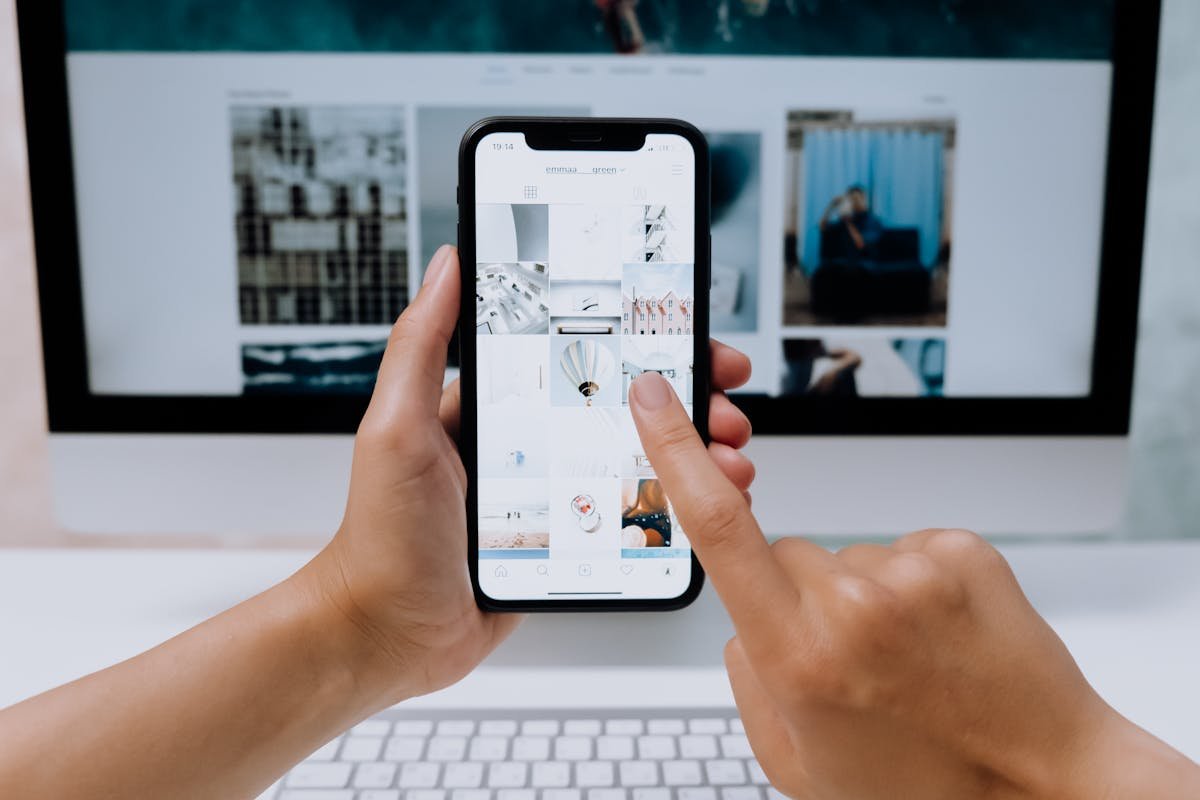
Use the Roku Mobile App as a Temporary Remote
If your physical remote is not working at all, the Roku mobile app can help you control the device while you troubleshoot.
Roku has an official guide for using the Roku mobile app as a remote. This can be helpful if your Roku device and phone are on the same WiFi network.
“How to use the Roku mobile app as a remote.”
Steps to Use the Roku App Remote
- Install the official Roku mobile app from your phone’s app store.
- Connect your phone to the same WiFi network as your Roku device.
- Open the Roku app.
- Tap Devices.
- Select your Roku device.
- Tap Remote.
If the app cannot find your Roku device, make sure your phone and Roku are on the same network. Guest WiFi, VPN apps, and mobile data can stop the app from connecting.
Roku App Cannot Find the Device
If the Roku app remote does not find your Roku device, try these checks.
Check the Same WiFi Network
Your phone and Roku device usually need to be on the same WiFi network. If your phone is using mobile data, switch it to WiFi.
Turn Off VPN Temporarily
If your phone uses a VPN, turn it off for a moment and try again. VPN apps can block local network discovery.
Restart Router and Roku
Restart your router, then restart your Roku device. After both are back online, open the Roku app again.
Enable Mobile App Control
Roku’s mobile app help says users can enable mobile app control from Roku settings by going to Settings, System, Advanced system settings, and Control by mobile apps.
Roku Remote Pairing Button Missing
Not every Roku remote has a visible pairing button. Some simple remotes do not pair at all because they use infrared. Some newer voice remotes use different pairing methods.
If It Is a Simple Remote
There is usually no pairing button because the remote does not need pairing. Focus on batteries, line of sight, and blocked signal.
If It Is a Voice Remote
Look inside the battery compartment or on the back of the remote. If there is no pairing button, check Roku’s official remote model guide or use the Roku app to navigate to remote settings.
Roku Remote Works Sometimes, Then Stops
If the remote works only sometimes, the issue may be weak batteries, interference, distance, or a remote that is starting to fail.
Try Fresh Batteries From a Good Brand
Weak batteries can cause delayed buttons and random disconnections. Replace both batteries at the same time.
Move Other Electronics Away
Wireless speakers, routers, game consoles, and other devices near the Roku can sometimes add interference. Move the Roku device slightly and test again.
Check for Overheating
If your Roku device is very hot, unplug it and let it cool. Place it somewhere with more airflow.
When to Replace Your Roku Remote
You may need a replacement remote if none of the fixes work.
Replace the Remote If You Notice These Signs
- The remote does not work with fresh batteries.
- The battery contacts are damaged or corroded.
- Buttons are stuck or physically broken.
- The remote will not pair after several attempts.
- The remote was dropped in water.
- The Roku mobile app works, but the physical remote never responds.
Before buying, confirm your Roku model and remote type. A Roku simple remote may not work with every device, and some Roku voice remote features depend on the model.
Roku Remote Fix Checklist
| Problem | Most Likely Cause | Best First Fix |
|---|---|---|
| No buttons work | Dead batteries or frozen Roku device | Replace batteries and restart Roku |
| Simple remote not working | Blocked infrared signal | Clear line of sight to the Roku device |
| Voice remote not working | Pairing lost | Restart and pair the remote again |
| Volume buttons not working | TV control setup issue | Set up remote for TV control again |
| Roku app cannot connect | Phone and Roku are not on same WiFi | Connect both to the same network |
What Not to Do
Do not rush to factory reset your Roku device just because the remote stopped working. A factory reset removes settings and should be a last step, not the first fix.
Also avoid random remote apps from unknown developers. Use the official Roku mobile app from your phone’s app store.
Do not buy a replacement remote until you know whether your current remote is simple or voice. Buying the wrong type can waste money.
Final Takeaway
If your Roku remote is not working, start with batteries and a restart. Then check whether you have a simple remote or a voice remote. Simple remotes need a clear signal path. Voice remotes may need to be paired again.
If the physical remote is completely dead, use the official Roku mobile app as a temporary remote. If the app works but the remote never responds after new batteries, restart, and pairing, replacement may be the right move.
FAQ
Why is my Roku remote not working even with new batteries?
Your Roku device may be frozen, the remote may need pairing, or something may be blocking the signal. Restart the Roku device and check your remote type.
How do I pair my Roku remote again?
Restart your Roku device, then press and hold the pairing button on the remote for about 5 seconds if your remote has one. Follow the on screen setup steps.
Why does my Roku remote volume not work?
The remote may need TV controls set up again. Go to Settings, Remotes and devices, Remotes, choose your remote, then set up remote for TV control.
Can I use my phone as a Roku remote?
Yes. Install the official Roku mobile app, connect your phone to the same WiFi network as your Roku device, select your device, and tap Remote.
Does a Roku simple remote need pairing?
Usually no. Roku simple remotes use infrared, so they need fresh batteries and a clear path to the Roku device or TV.
Should I factory reset Roku if the remote does not work?
Not at first. Try batteries, restart, line of sight checks, pairing, and the Roku app before doing a factory reset.
Sources
- Roku Support: Fix your Roku remote
- Roku Support: Remote Control Help
- Roku Support: What Roku remote do I have?
- Roku Support: Set up and pair your Roku voice remote
- Roku Support: Use the Roku mobile app as a remote
- Roku Support: Fix issues with the Roku mobile app