
Last updated: April 26, 2026
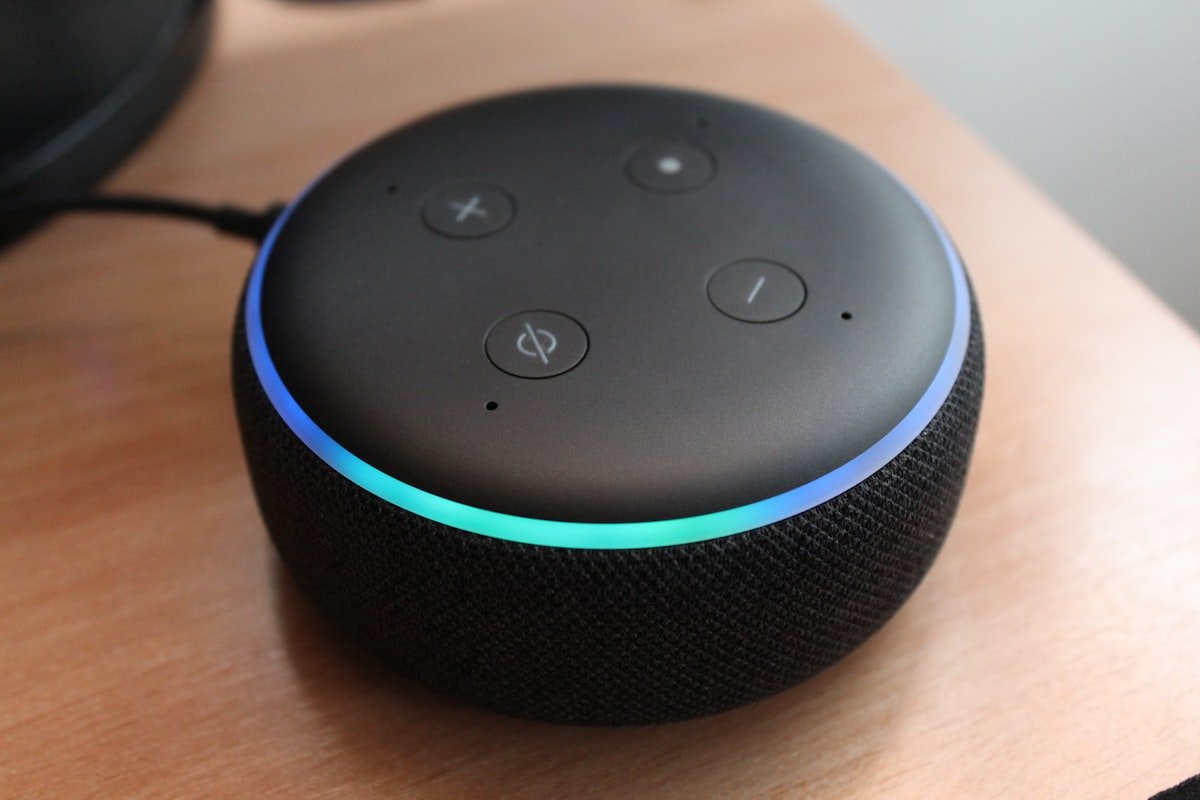
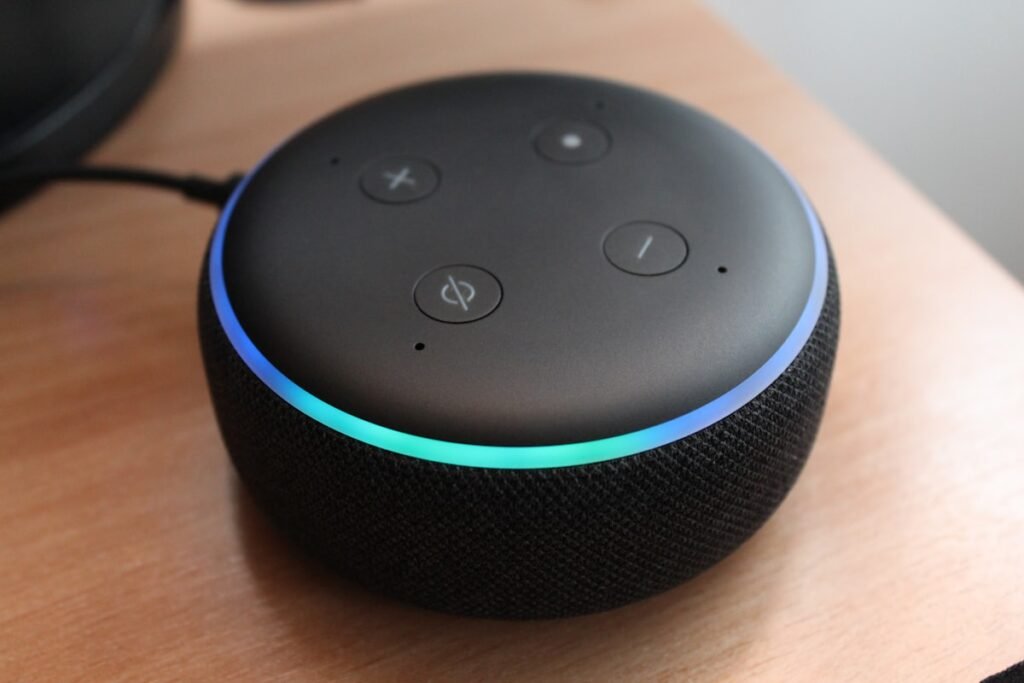
Alexa is useful until it suddenly says it cannot connect to the internet. Your Echo may show an orange light, fail during setup, disappear from the Alexa app, or keep saying it is offline even when your phone is connected to WiFi.
The problem is usually not as serious as it looks. In many homes, Alexa WiFi problems come from a weak signal, wrong password, router issue, app permission problem, changed WiFi name, or an Echo device that simply needs a restart.
This guide walks through the fixes in the right order. Start at the top and stop when Alexa comes back online.
Quick Answer
If Alexa is not connecting to WiFi, restart your Echo device first. Then check that your router is working, confirm the WiFi password, move the Echo closer to the router, update the WiFi network in the Alexa app, and restart your modem and router. If Alexa still fails during setup, try setup again, check app permissions, and use a phone hotspot test to see whether the problem is your home network or the Echo device.
Why Alexa Will Not Connect to WiFi
Alexa needs a working internet connection to answer questions, play music, control smart home devices, and use most skills. If your Echo cannot reach WiFi, it may still power on, but it will not work normally.
Common reasons include:
- Your router or internet service is down.
- The Echo device is too far from the router.
- The WiFi password was changed.
- The Echo is trying to connect to an old network.
- The Alexa app does not have the right phone permissions.
- Your router is blocking the device.
- The 2.4 GHz or 5 GHz WiFi band is unstable in that room.
- Your Echo device needs to be restarted or set up again.
Amazon’s official help page for Echo WiFi issues starts with simple checks such as making sure the router is working and testing the connection with another device.
“Check that your router is working.”
Before You Change Settings, Check This First
Do not reset the Echo right away. A reset can remove settings and make you set up the device again. Check the easy things first.
Check If Your Internet Works on Another Device
Connect your phone or laptop to the same WiFi network. Open a website or play a video. If other devices are also offline, the issue is probably your modem, router, or internet provider, not Alexa.
Check If Alexa Is Plugged In Properly
Make sure the power cable is fully connected to the Echo device and the wall outlet. If you use a power strip, try a direct wall outlet for testing.
Check the Alexa App
Open the Alexa app and check whether the device shows as offline. If the app itself is not loading correctly, switch your phone from mobile data to WiFi or restart the app.
Check the WiFi Name
If you recently changed your router, network name, password, or internet provider, Alexa may still be trying to connect to the old WiFi network.
Fix 1: Restart Your Echo Device
This is the easiest fix and often works.
- Unplug your Echo device from power.
- Wait at least 10 seconds.
- Plug it back in.
- Wait for it to fully start.
- Ask, “Alexa, are you connected to the internet?”
Amazon also recommends restarting the Echo device when it has intermittent WiFi connectivity issues.
“First try restarting your device.”
Fix 2: Restart Your Modem and Router
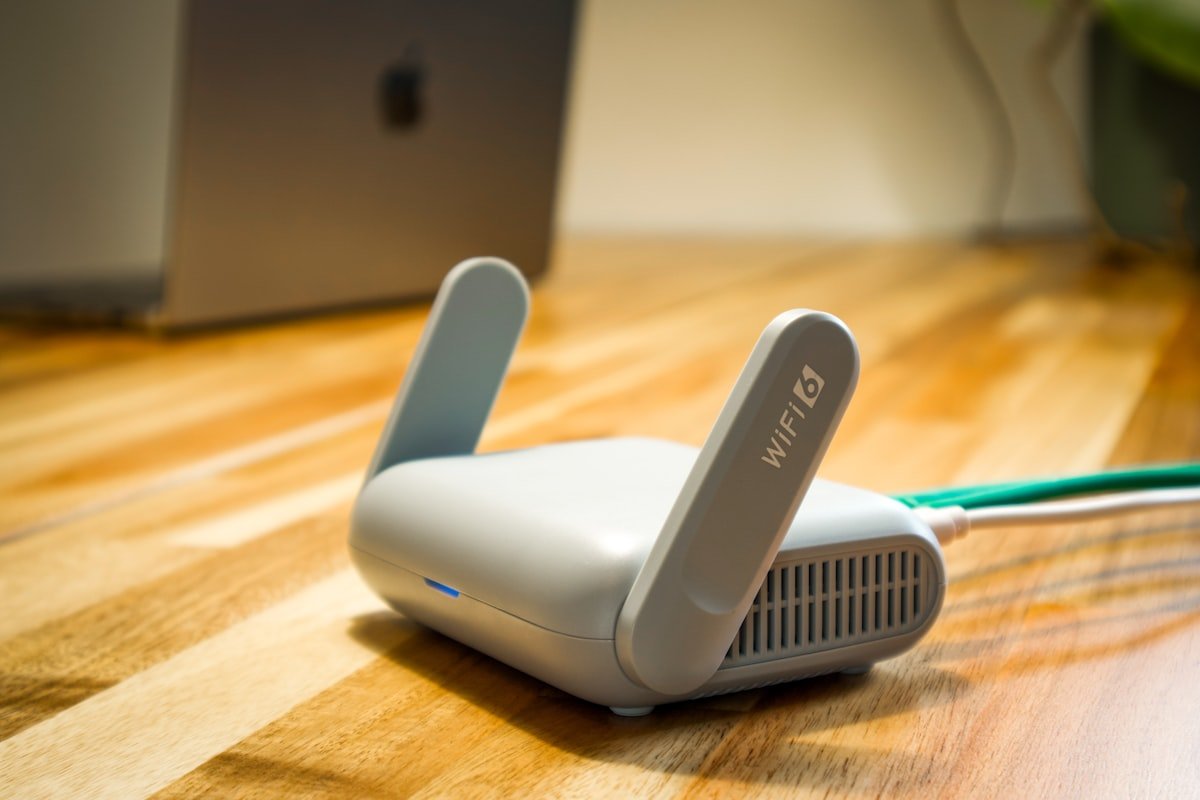
If your Echo restart did not work, restart the home network next.
- Unplug your modem and router from power.
- Wait 30 seconds.
- Plug the modem back in first.
- Wait until the modem lights look normal.
- Plug the router back in.
- Wait two or three minutes.
- Try Alexa again.
If your modem and router are one device, unplug that single device, wait, then plug it back in.
When This Fix Helps
This helps when the router is frozen, the internet signal dropped, or connected devices are acting strange. If your phone and laptop were also having WiFi trouble, this should be one of the first things you try.
Fix 3: Move Alexa Closer to the Router
Alexa may connect poorly if the Echo is too far from the router or blocked by walls, floors, metal shelves, appliances, mirrors, or large furniture.
Move the Echo closer to the router for testing. If it connects near the router but fails in the original room, the problem is signal strength.
Better Echo Placement
- Place the Echo in an open area.
- Keep it away from thick walls and metal surfaces.
- Do not hide it inside a cabinet.
- Keep it away from microwaves and crowded power strips.
- Try placing it halfway between your router and the room where you use it.
The FCC recommends placing your router in a central location to improve WiFi coverage at home. It also says a WiFi range extender or mesh network can help in larger homes.
Official guide: FCC Home Network Tips
Fix 4: Confirm the WiFi Password
A wrong password is one of the most common reasons Alexa fails during setup. This can happen if the router password was changed, the wrong network was selected, or the password was typed with one wrong character.
Password Checks
- Make sure you are using the current WiFi password.
- Check uppercase and lowercase letters.
- Watch for similar characters like O and 0.
- Do not copy extra spaces before or after the password.
- Try connecting another device with the same password.
If another device also fails with the same password, the password is likely wrong.
Fix 5: Update WiFi Settings in the Alexa App
If you changed your router, moved homes, renamed your WiFi, or got a new internet provider, update the Echo WiFi settings in the Alexa app.
How to Update Echo WiFi Settings
- Open the Alexa app.
- Tap Devices.
- Select your Echo device.
- Open Device Settings.
- Choose the option to change or remove the WiFi network.
- Follow the app instructions to connect to the correct WiFi network.
Amazon’s official guide explains how to update the WiFi settings for an Echo device from the Alexa app.
Official guide: Amazon Help: Update the WiFi Settings for Your Echo Device
Fix 6: Put Your Echo Back Into Setup Mode
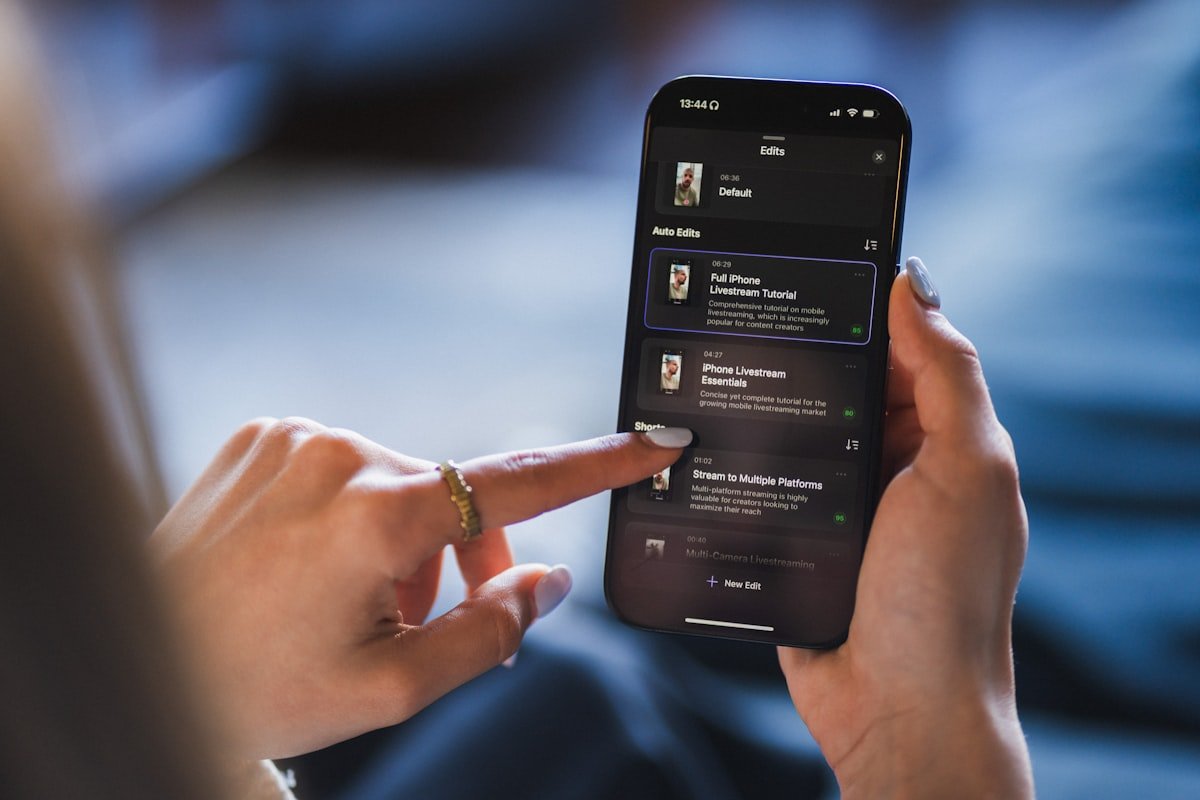
If Alexa fails during setup, the device may need to be placed back into setup mode. The exact method can vary by Echo model, but many Echo devices show an orange light when they are ready for setup.
Basic Setup Mode Steps
- Open the Alexa app.
- Tap Devices.
- Tap the plus icon to add a device.
- Choose Amazon Echo.
- Select your Echo model.
- Follow the prompts until your Echo connects to WiFi.
If the app cannot find your Echo, restart both the Echo and your phone, then try again.
Fix 7: Check Alexa App Permissions
The Alexa app may need Bluetooth, location, and local network access during setup. If these permissions are blocked, the app may not find the Echo or nearby WiFi networks correctly.
On iPhone
- Open Settings.
- Scroll to Alexa.
- Allow Bluetooth if needed.
- Allow Local Network if shown.
- Allow Location while setting up if the app asks for it.
On Android
- Open Settings.
- Tap Apps.
- Choose Amazon Alexa.
- Open Permissions.
- Allow the permissions needed for setup.
After changing permissions, close and reopen the Alexa app.
Fix 8: Try the Other WiFi Band
Many routers use two WiFi bands: 2.4 GHz and 5 GHz. Some homes show these as two different network names. Others combine them under one name.
When to Try 2.4 GHz
Try 2.4 GHz if your Echo is far from the router or in another room. This band usually reaches farther through walls.
When to Try 5 GHz
Try 5 GHz if your Echo is close to the router and the 2.4 GHz network is crowded or unstable.
If your router combines both bands under one name, restart the router and move the Echo closer during setup. If your router lets you split the bands into separate names, test each band.
Fix 9: Check Router Security and Device Limits
Some router settings can block Alexa from joining the network. This is more common if someone changed advanced router settings, added parental controls, or limited connected devices.
Check These Router Settings
- Make sure the WiFi network is not hidden.
- Check whether new devices are blocked.
- Look for parental controls or device pause settings.
- Check if the router has reached its device limit.
- Make sure your Echo is not blocked by MAC filtering.
- Use a standard home WiFi security setting such as WPA2 or WPA3 if supported by your router and device.
If you are not comfortable changing router settings, contact your internet provider or router support.
Fix 10: Test With a Phone Hotspot
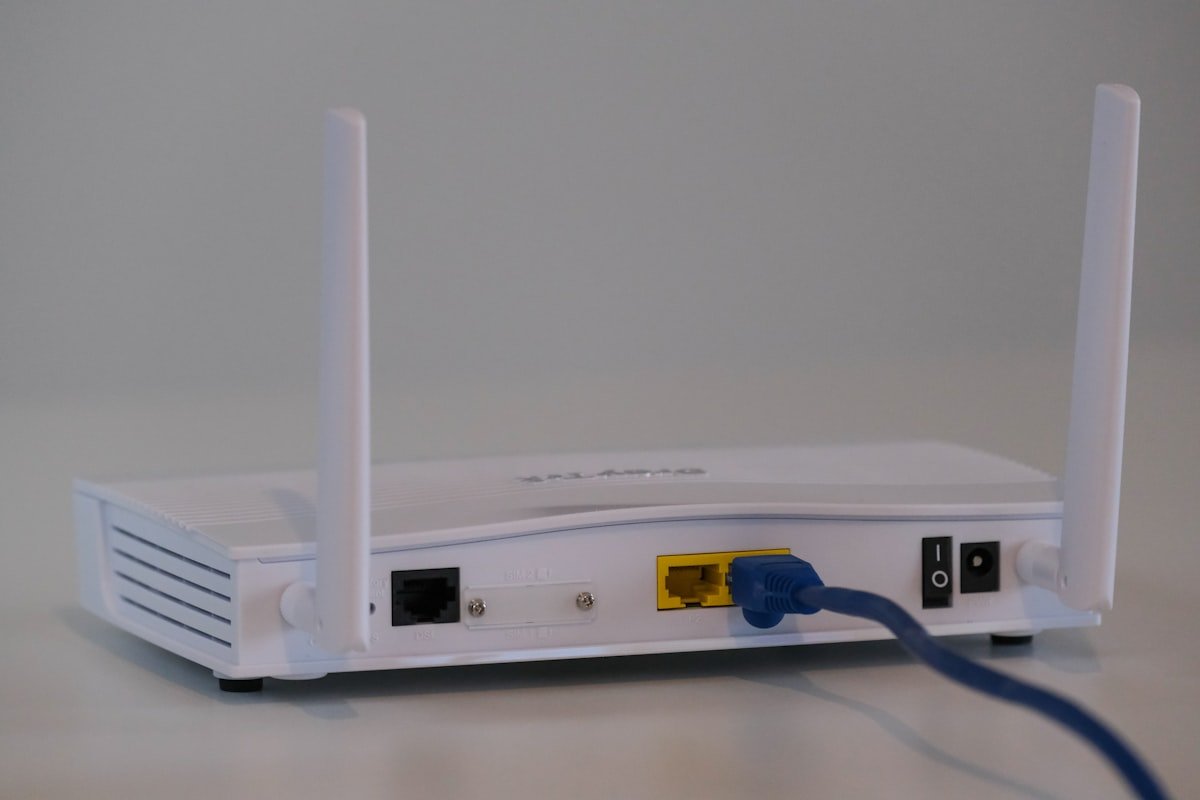
If your Echo still will not connect, a hotspot test can help you find the real problem.
Amazon suggests trying setup again using your phone as a WiFi hotspot when an Echo device cannot connect during setup.
Official guide: Amazon Help: Echo Device Cannot Connect to WiFi During Setup
What the Hotspot Test Means
| Result | What It Means | Next Step |
|---|---|---|
| Echo connects to hotspot | Your Echo likely works, but your home WiFi has a problem. | Check router settings, password, coverage, or internet provider. |
| Echo does not connect to hotspot | The Echo setup process, app, or device may be the problem. | Restart phone and Echo, update the app, then contact Amazon Support if needed. |
Use this only as a test. A phone hotspot can use mobile data quickly.
Fix 11: Update the Alexa App
An old Alexa app can cause setup or device management problems. Open the App Store or Google Play Store and check for an Alexa app update.
After updating, restart your phone and try the setup again.
Fix 12: Check If Alexa Is Having a Service Issue
Sometimes your Echo and WiFi are fine, but an online service issue affects Alexa features. If many people nearby or online are reporting Alexa problems at the same time, wait and try again later.
You can also test basic internet by asking another smart device or opening different websites on your phone. If only Alexa is failing, it may be an Amazon service or account issue.
Fix 13: Reset the Echo Only as a Last Step
A factory reset can help if your Echo is stuck, but it should not be your first move. Resetting removes device settings and you may need to set it up again from scratch.
Reset Only If
- The Echo will not enter setup mode.
- The Alexa app cannot reconnect it after several tries.
- You changed homes or accounts and the device is stuck on old settings.
- Amazon Support recommends it.
Reset steps vary by Echo model. Use Amazon’s official Echo support page for your device.
Official support hub: Amazon Echo Support
Alexa WiFi Fix Checklist
| Problem | Likely Cause | Best First Fix |
|---|---|---|
| Alexa says it is offline | Echo lost internet connection | Restart Echo, then restart router |
| Echo fails during setup | Wrong password, app permission, or weak signal | Check password and move Echo closer |
| Alexa worked before but stopped | Router, internet, or changed WiFi settings | Test WiFi on phone and update Echo WiFi settings |
| Echo connects near router only | Weak WiFi signal in the room | Move router, use 2.4 GHz, or add mesh WiFi |
| Alexa app cannot find Echo | App permissions or setup mode issue | Check Bluetooth, location, and local network access |
What Not to Do
Some fixes create more problems than they solve. Avoid these unless you know exactly why you are doing them.
Do Not Factory Reset First
Try restart, password check, router restart, and Alexa app WiFi update first. Reset should come later.
Do Not Change Many Router Settings at Once
If you change five router settings together, you will not know which one caused the problem or fixed it. Change one thing at a time.
Do Not Use a Public WiFi Network for Echo Setup
Many public networks need a login page, room number, or browser agreement. Echo devices often struggle with those networks.
Do Not Ignore Other Devices
If your phone, laptop, Roku, and smart TV are also having trouble, Alexa is not the main problem. Fix the home WiFi first. This related guide may help if your streaming device is also acting up: Roku Remote Not Working? Simple Fixes Before You Buy a New One.
When the Problem Is Your Home WiFi
If Alexa works near the router but fails in another room, your WiFi coverage may be weak. A better router location, range extender, or mesh system may help.
Signs Your WiFi Coverage Is the Real Issue
- Alexa disconnects only in one room.
- Video streaming buffers in the same area.
- Your phone loses WiFi bars in that room.
- Smart plugs or cameras disconnect often.
- The router is hidden in a corner, closet, or basement.
If your phone also shows service problems outside WiFi, read this guide next: iPhone Says SOS Only: Meaning and Simple Fixes That Work.
When the Problem Is Your Account or App
Sometimes the Echo is connected to WiFi, but Alexa features still fail. That can happen if the Alexa app is logged into the wrong Amazon account or if the device is registered to a different account.
Check These Account Details
- Make sure the Alexa app is using the right Amazon account.
- Check whether the Echo appears under Devices.
- Make sure your Amazon account has not been locked or signed out.
- If the Echo was used before, make sure it was removed from the old account.
If you are cleaning up app accounts and paid services on your phone, this related guide is useful: How to Find and Cancel Hidden App Subscriptions Before They Charge You.
When to Contact Amazon or Your Internet Provider
Contact your internet provider if multiple devices cannot connect, your router keeps dropping WiFi, or your internet is down even after restarting the modem and router.
Contact Amazon Support if your Echo will not enter setup mode, fails on both home WiFi and hotspot, or disappears from the Alexa app after repeated setup attempts.
Before You Contact Support, Write Down
- Your Echo model
- Your router model
- Whether other devices connect to WiFi
- Whether Echo connects to a phone hotspot
- Any error shown in the Alexa app
- When the problem started
How to Prevent Alexa WiFi Problems Later
A few small habits can prevent repeat problems.
- Keep your router in a central, open location.
- Use a clear WiFi name you can recognize.
- Save your current WiFi password somewhere safe.
- Keep the Alexa app updated.
- Restart your router once in a while if your internet becomes unstable.
- Use a mesh system if your home has weak WiFi zones.
- Update Echo WiFi settings right after changing router details.
If your Gmail or Google account is also full of warnings, storage cleanup may help your phone run smoother too. Read: Gmail Storage Full? How to Free Up Space Without Paying for Google One.
Related Viral4UR Guides
These guides are useful if your Alexa issue connects to phone, WiFi, messages, accounts, or smart home problems:
- Roku Remote Not Working? Simple Fixes Before You Buy a New One
- iPhone Says SOS Only: Meaning and Simple Fixes That Work
- What Does RCS Mean in Texting? iPhone and Android Guide
- How to Stop Spam Texts on iPhone and Android
- Traffic Violation Text Scam: What To Do If You Get a QR Code Message
- How to Find and Cancel Hidden App Subscriptions Before They Charge You
- How to Use AI to Summarize Articles, PDFs, and Long Emails
- Gmail Storage Full? How to Free Up Space Without Paying for Google One
Final Takeaway
If Alexa is not connecting to WiFi, start with the simple fixes. Restart the Echo, restart the router, check the password, move the Echo closer, and update the WiFi settings in the Alexa app.
If it still fails, test with a phone hotspot. If Alexa connects to the hotspot, your home WiFi is likely the problem. If it does not connect anywhere, the app setup or Echo device may need deeper support.
Do not factory reset first. Most Alexa WiFi problems can be solved without wiping the device.
FAQ
Why is Alexa not connecting to WiFi?
Alexa may not connect to WiFi because the router is down, the password is wrong, the Echo is too far from the router, the app has blocked permissions, or the Echo is still saved to an old WiFi network.
How do I reconnect Alexa to WiFi?
Open the Alexa app, go to Devices, choose your Echo device, open Device Settings, then change or update the WiFi network. Follow the setup instructions in the app.
Why does Alexa say it is offline when WiFi works?
The Echo may have lost connection even though other devices still work. Restart the Echo, move it closer to the router, and check the Alexa app to update its WiFi settings.
Should I reset Alexa if it will not connect?
Reset only as a last step. Try restarting the Echo, restarting the router, checking the password, updating the Alexa app, and changing WiFi settings first.
Can Alexa connect to 5 GHz WiFi?
Many Echo devices can use 5 GHz WiFi, but support depends on the model and router. If 5 GHz fails, try 2.4 GHz, especially if the Echo is far from the router.
Can Alexa work without internet?
Most Alexa features need internet. Without WiFi, Alexa may not answer questions, stream music, run most skills, or control many smart home devices.
Why does Alexa fail during setup?
Setup can fail because of a wrong WiFi password, weak signal, app permission issue, router setting, old app version, or a device that is not in setup mode.
How do I know if the problem is Alexa or my router?
Test other devices on the same WiFi. If they also fail, the router or internet is likely the issue. If only Alexa fails, update the Echo WiFi settings or test with a phone hotspot.